Customising and troubleshooting
Guide › Customising and troubleshooting
Customising
Settings
File > Settings… (Cmd-,) holds every setting of the app in one window. On the Mac it’s also in the application menu. Choose a section down the left:
| Section | What it holds |
|---|---|
| Start | Whether the app opens on the home screen (the default), reopens the file you had open when you quit, or continues where you left off: every file, the session and where you were in each |
| Look | Theme, accent, waveform colour, time format, and what the editor shows |
| Editing | How editing behaves |
| Playback | How playback behaves |
| Multitrack | Session settings |
| Recording | Pre-roll, post-roll, count-in, metronome, input monitoring and loop recording |
| Audio | The audio interface |
| Plug-ins | Plug-in scanning |
| AI | Experimental: the model server Ask Torq uses, its key and model. See Ask Torq |
| Keys | Keyboard shortcuts |
| Sound Library | The library’s folders and the folders left out of its list |
Each change takes effect at once, and the menus’ own switches stay in step with it.
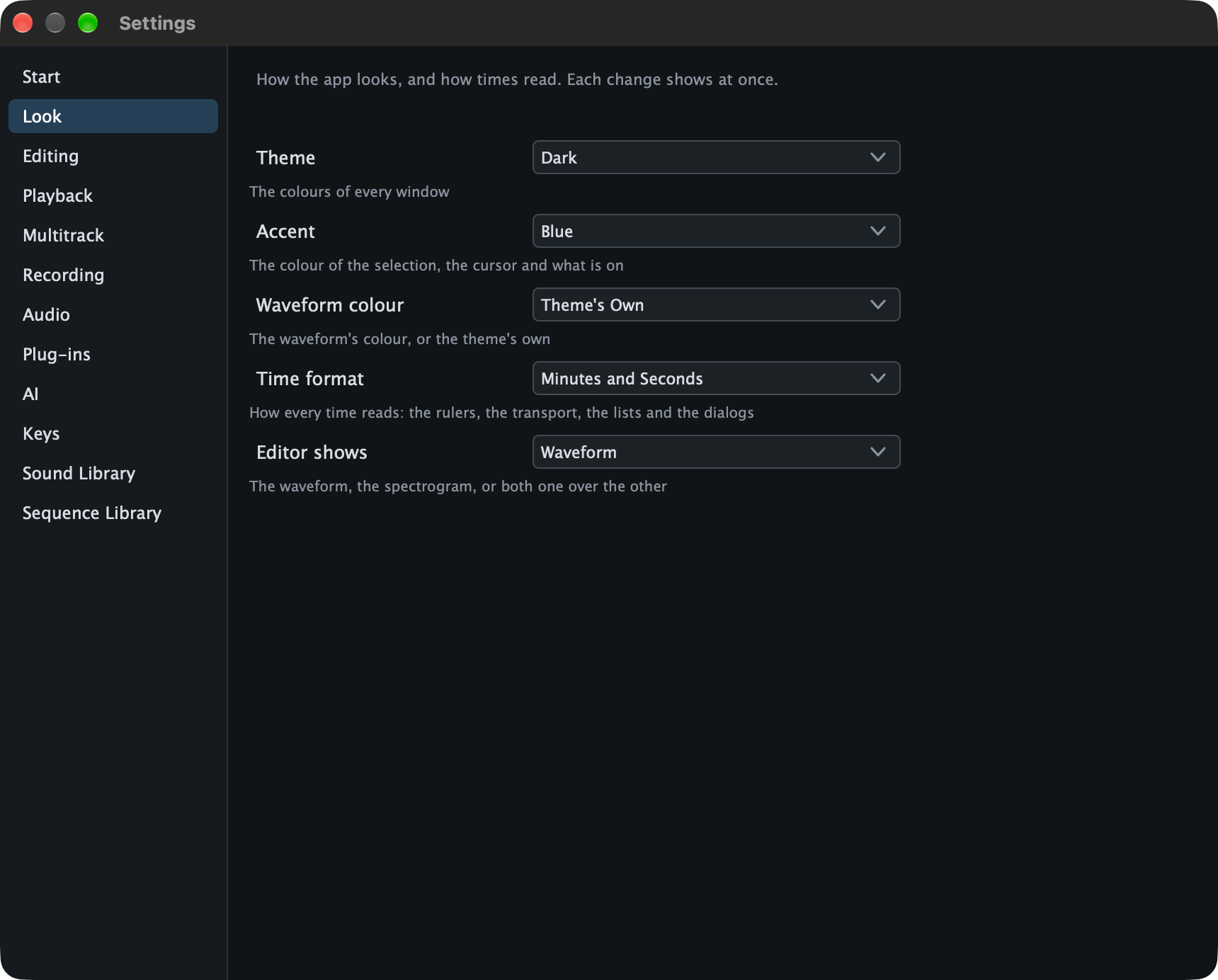
Themes
View > Theme sets three things:
- The theme:
- dark: Dark, Darker, Slate, Charcoal, Studio, Midnight;
- light: Light, Paper, Fog;
- High Contrast.
- Accent: the colour that marks what is selected or on. Blue, Teal, Orange or Violet.
- Waveform: the theme’s own colour, or Green, Blue, Amber, Rose or Grey.
The change shows at once and is kept for next time.
| Light | High Contrast |
|---|---|
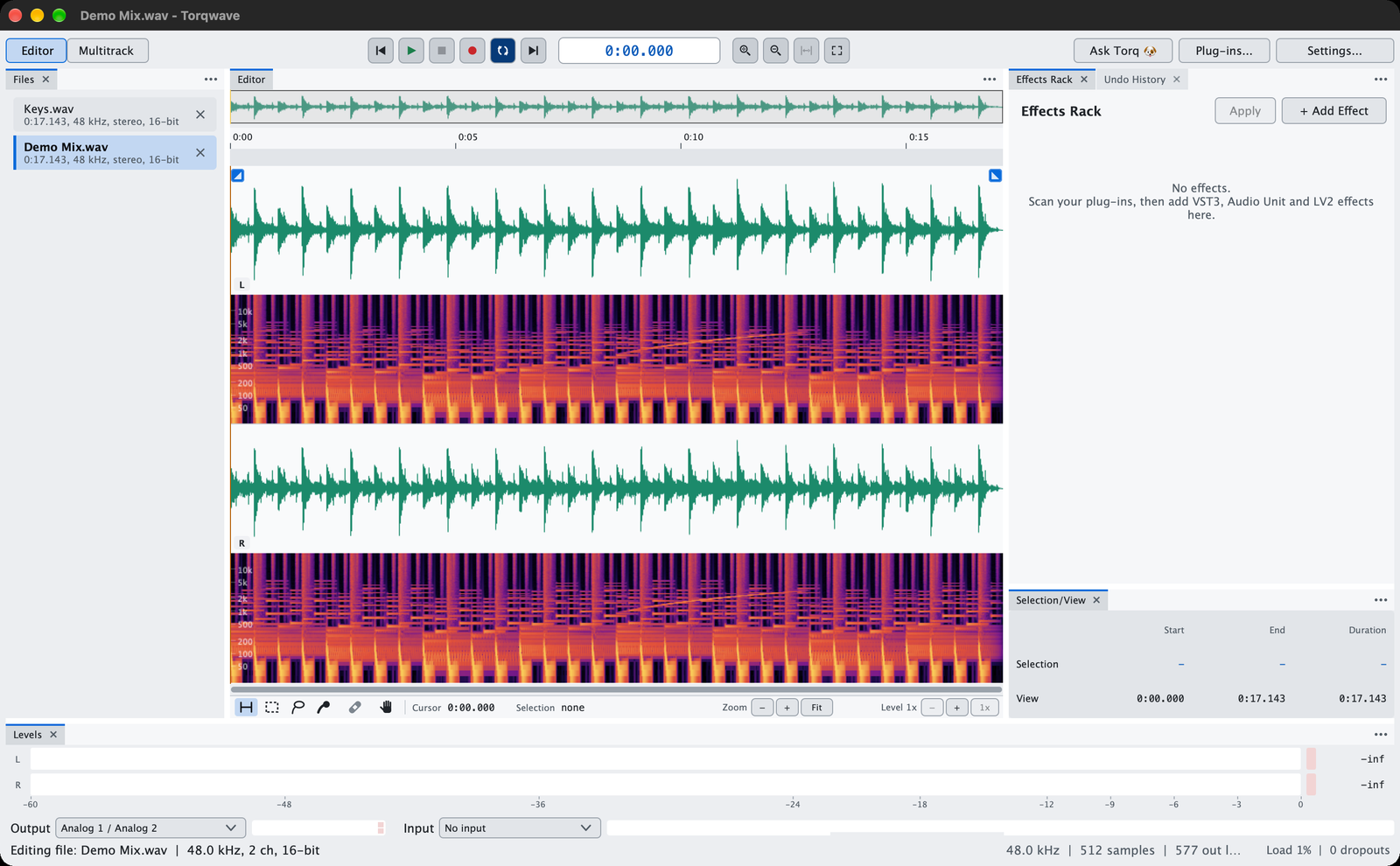 |
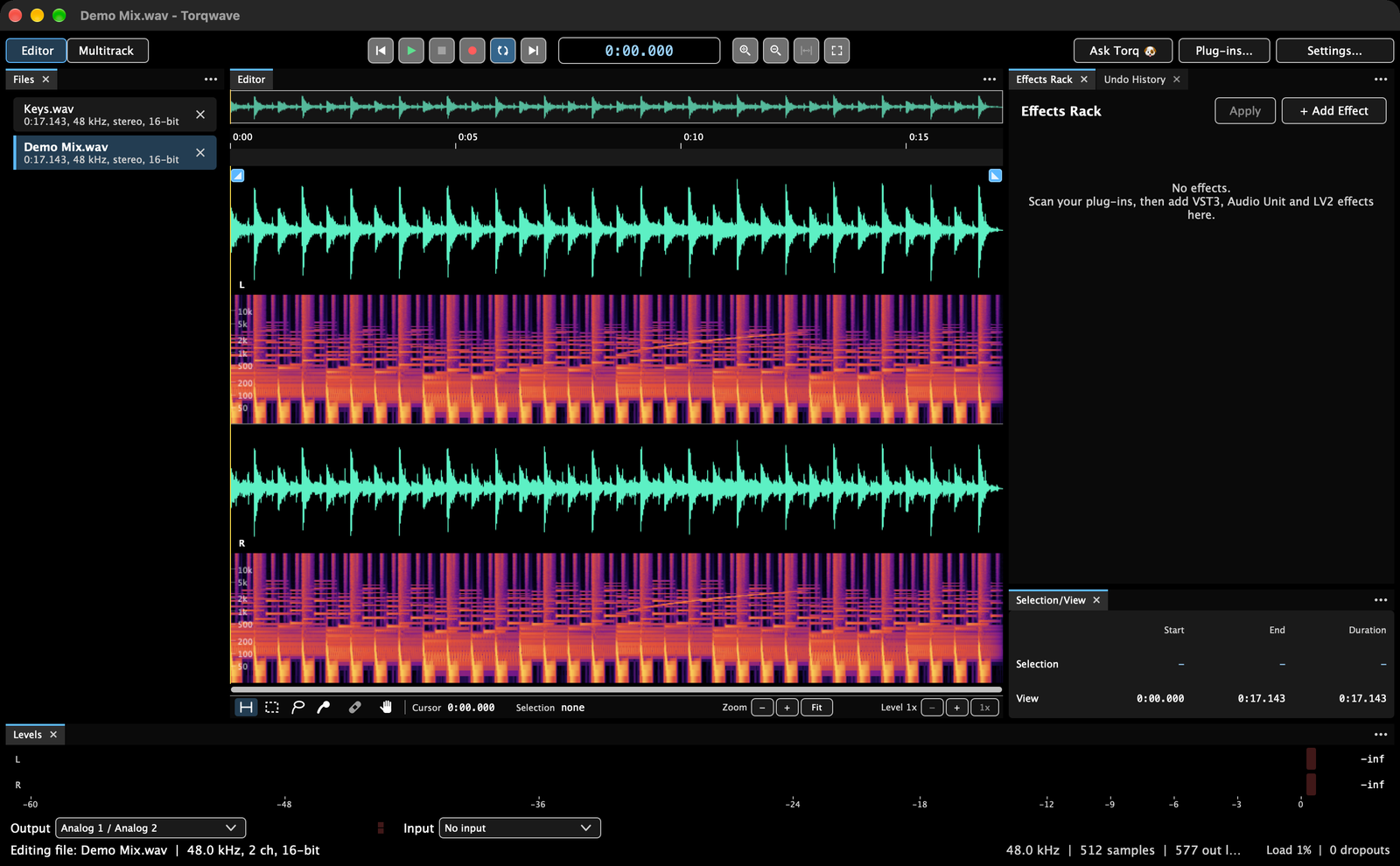 |
Time format
View > Time Format shows every time in the app (rulers, transport, lists and dialogs) as one of:
- minutes and seconds;
- decimal seconds;
- samples;
- SMPTE timecode at 24, 25, 29.97 drop, 29.97 or 30 fps.
Times you type are read in that format too, and seconds and m:ss still work in all of them. CSV exports and the Sound Library always use seconds.
Panels and workspaces
See the window: docking, tabs, floating panels, maximising, and saving workspaces.
Keyboard shortcuts
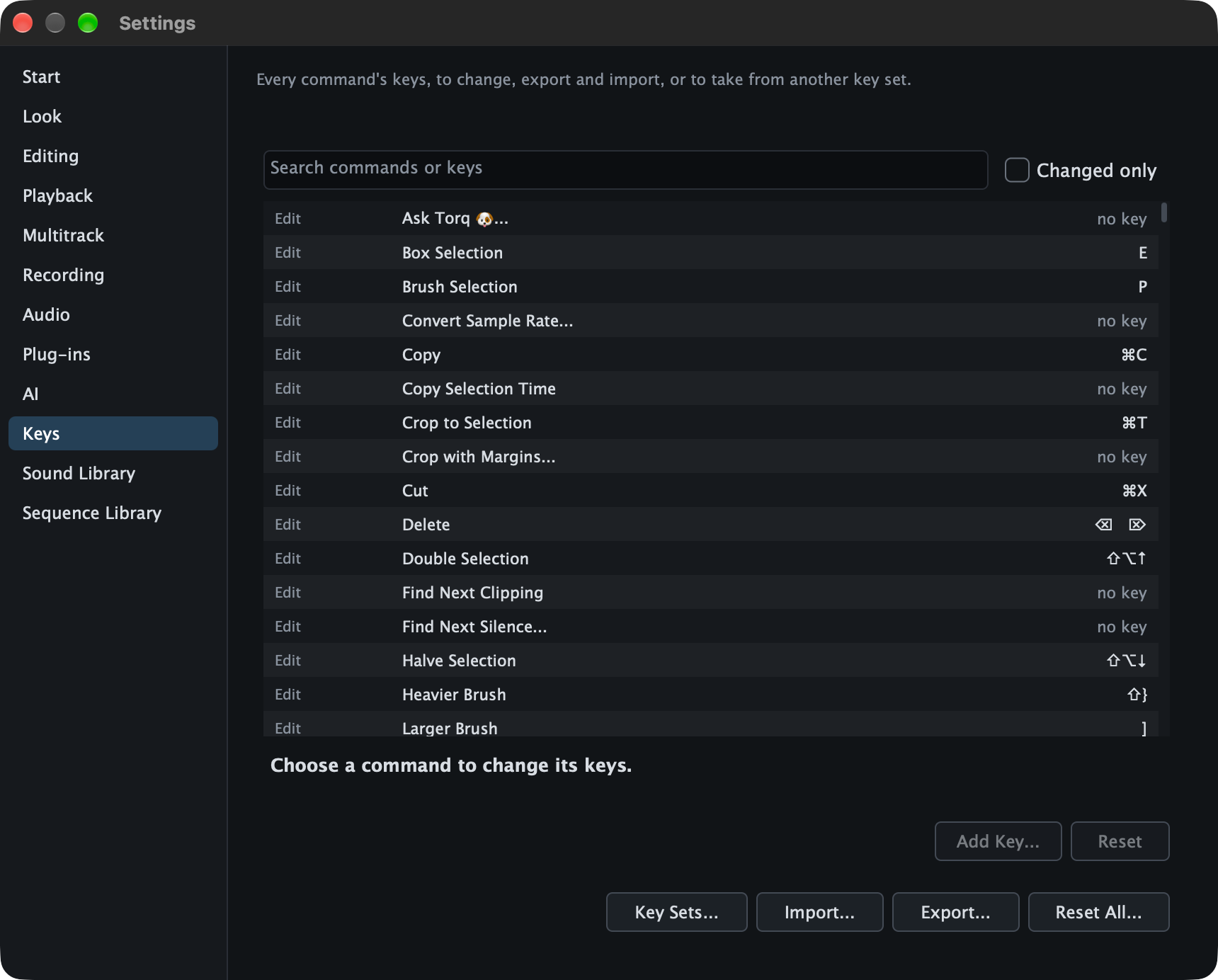
Settings > Keys lists every command and its keys (Window > Keyboard Shortcuts… opens it).
- Find a command: search the list.
- Give it new keys: change them in the list.
- Share them: export and import them to move them between computers.
- Use Audition’s keys: Key Sets… > Audition-Style Keys switches to keys like Adobe Audition’s.
SHORTCUTS.md lists the keys Torqwave ships with. Help > Keyboard Shortcut List opens it in the guide’s window.
Troubleshooting
It won’t open the first time
- Mac: macOS blocks apps signed ad hoc. Open Torqwave once, then go to System Settings > Privacy & Security and choose Open Anyway.
- Windows: SmartScreen may stop an unsigned program. Choose More info > Run anyway.
No sound
- Check Settings… > Audio: the right device and outputs, and a sample rate the device supports.
- Check Output at the bottom of the window.
- Look for an effect in the rack, or on a track, that is silencing the sound. Bypass each in turn.
- In a session, check for mute or solo. Multitrack > Tracks > Unsolo All and Unmute All clear them all.
Crackles and dropouts
The bottom right of the window counts dropouts: times the computer couldn’t keep up with the audio, and blocks a track’s plug-ins played silence because their chain was being changed (an effect added, removed, moved or bypassed, or the session saved).
- Raise the buffer size in Settings > Audio.
- Freeze heavy tracks (Multitrack > Render and Export > Freeze Track).
- Close other heavy apps.
Recording says the rates don’t match
A recording must run at the file’s or session’s sample rate. Set the interface to that rate in Settings > Audio, or convert the file with Edit > Convert Sample Rate…. See Recording.
“Choose an input to record from first”
Choose an Input at the bottom of the window. In a session, choose each armed track’s input with its In button.
A plug-in is missing or “not working”
- Check the scan: open Plug-ins…. Plug-ins that failed their check are at the end of the list, and the reason for each is in the log.
- Try again: Retry Not Working checks them again. Use it after updating a plug-in.
- Not in the list at all: it may be in a folder Torqwave doesn’t search (plug-in folders), or it may be a VST2, which Torqwave doesn’t support.
- Instruments: they don’t appear under + Add Effect. They go on instrument tracks.
A file won’t open, or the video panel is empty
Many formats, and the Video panel for MKV, WebM and more, need ffmpeg installed:
- Mac:
brew install ffmpeg - Windows:
winget install Gyan.FFmpeg - Linux: from your distribution, e.g.
sudo apt install ffmpeg
Torqwave looks for ffmpeg in the usual places and on the PATH.
Where Torqwave keeps things
| Settings | Log | |
|---|---|---|
| Mac | ~/Library/Application Support/Torqwave |
~/Library/Logs/Torqwave/Torqwave.log |
| Windows | %APPDATA%\Torqwave |
%APPDATA%\Torqwave |
| Linux | ~/.config/Torqwave |
~/.config/Torqwave |
The log records:
- the audio device opened;
- plug-in scans;
- every error shown;
- after a crash, where it crashed.
Reporting a problem
Open an issue with:
- the version (Torqwave > About Torqwave on the Mac, Help > About elsewhere; a test build shows its build time and commit there too);
- what you did, what happened, and what you expected;
- the kind of file, if one was involved;
- the log, and on the Mac after a crash, the matching report from
~/Library/Logs/DiagnosticReports.
Back to the guide.